How to create a Gemini text-to-speech API key
This guide walks you through creating an API key for the Gemini text-to-speech (TTS) API so you can use it in Bina (e.g. in the TTS API service or onboarding).
Step 1: Open Google AI Studio
Go to Google AI Studio and sign in with your Google account. Once logged in, click on Create Api Key
Step 2: Get an API key
After clicking Get API key or API keys section (from the left menu or the main dashboard). A pop up will appear asking you to select a project or create a new one.
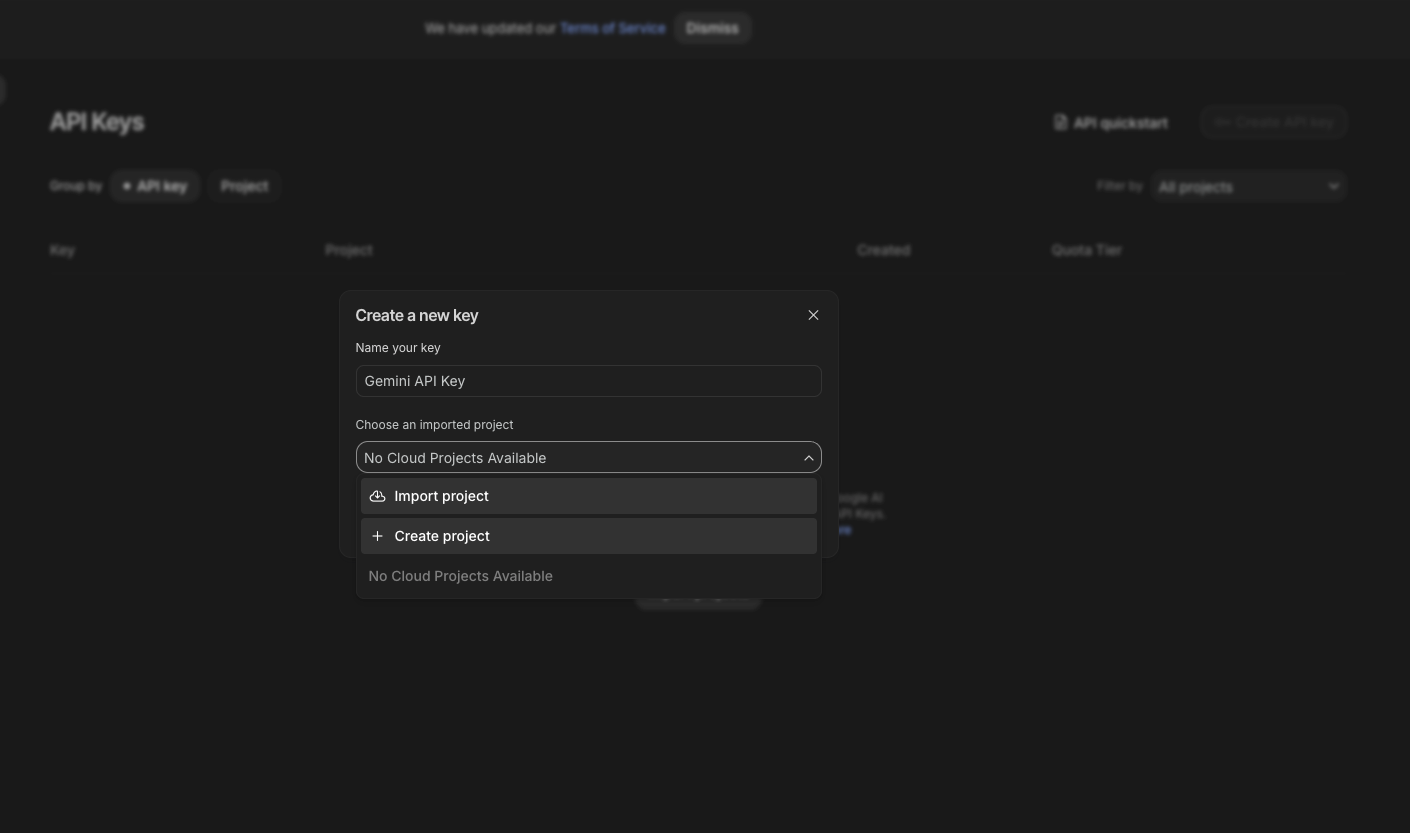
Step 3: Create or select project
Choose an existing Google Cloud project or create a new one. The key will be linked to that project for billing and quotas (but this will create a free project for now).
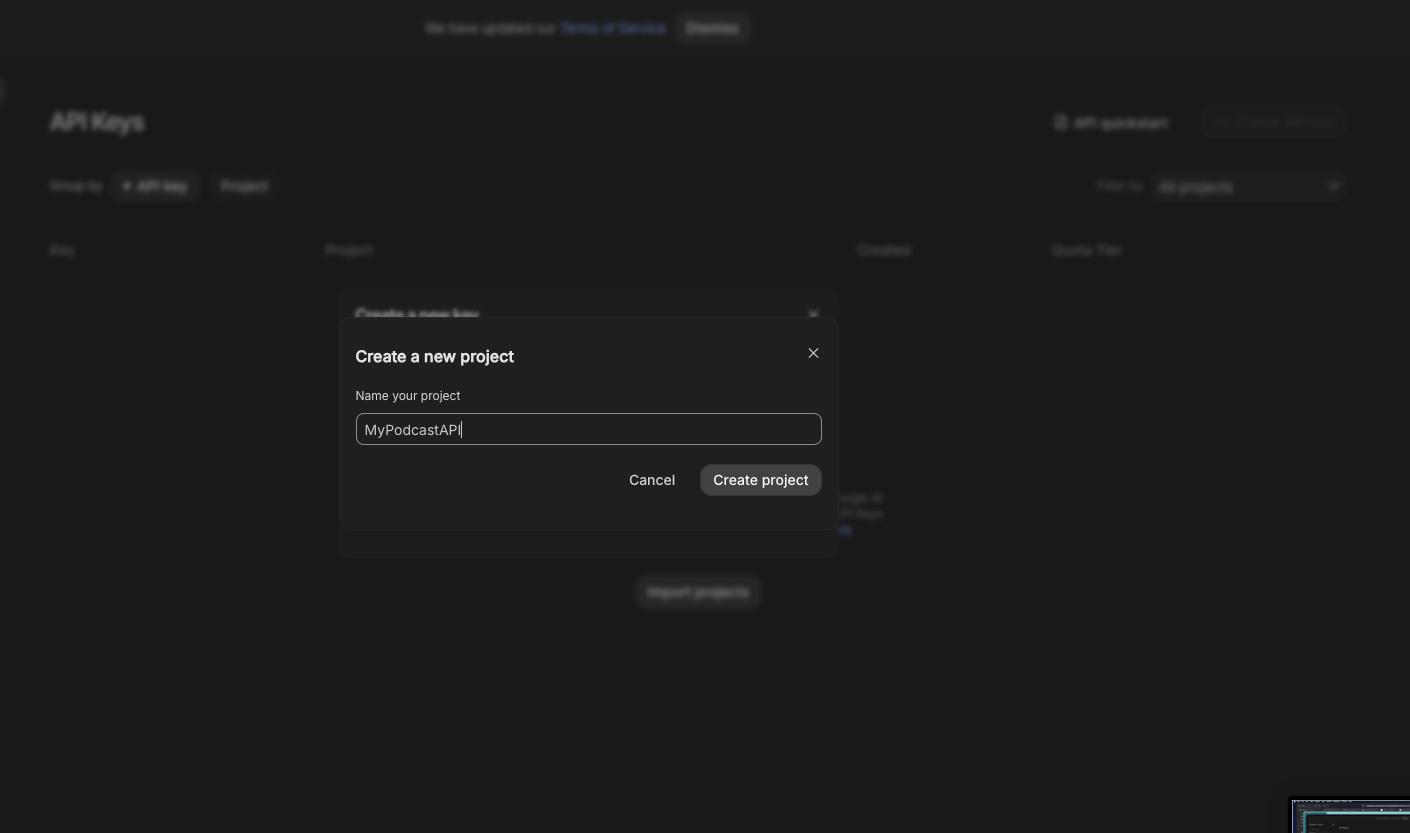
Step 4: Name the API key
After the project is selected, add a name to the API key (Bina TTS for example) and store it somewhere safe.
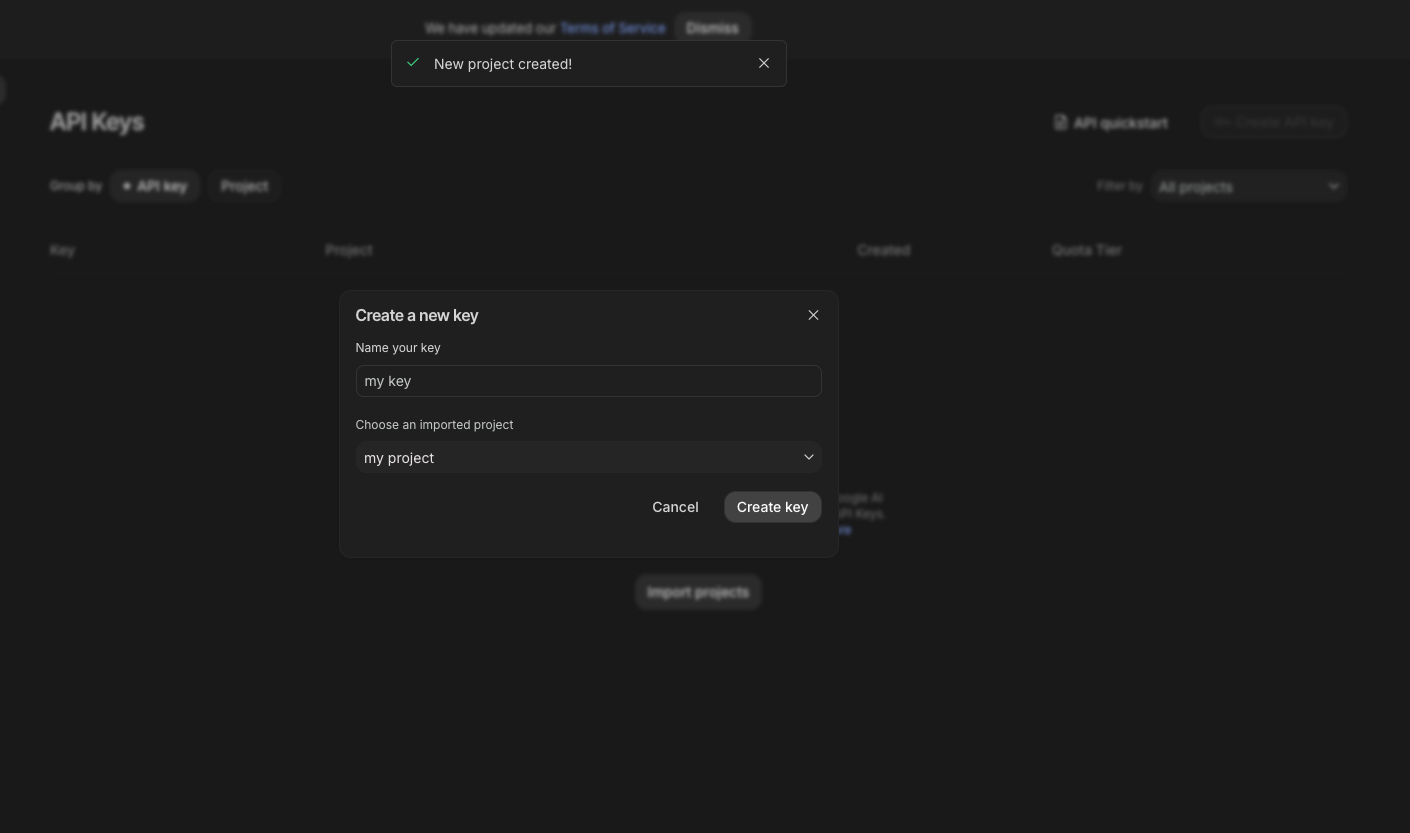
Step 5: (Optional) Restrict the key
In Google Cloud Console → APIs & Services → Credentials, you can restrict the key:
- API restrictions: Limit the key to only the APIs you use (e.g. Generative Language API for Gemini).
- Application restrictions: Restrict by IP or HTTP referrer if the key is used from a server or web app.
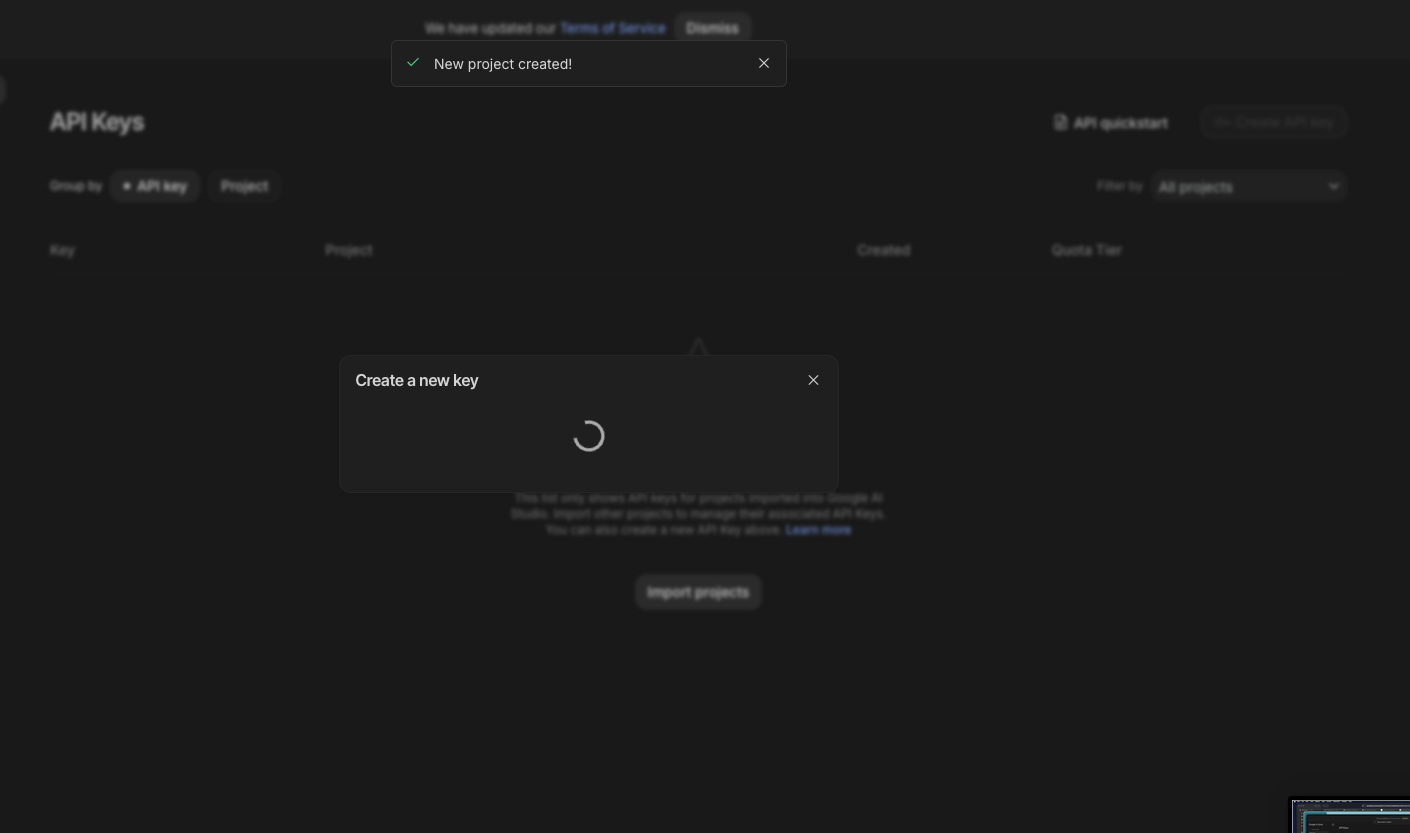
Step 6: Use the key in Bina
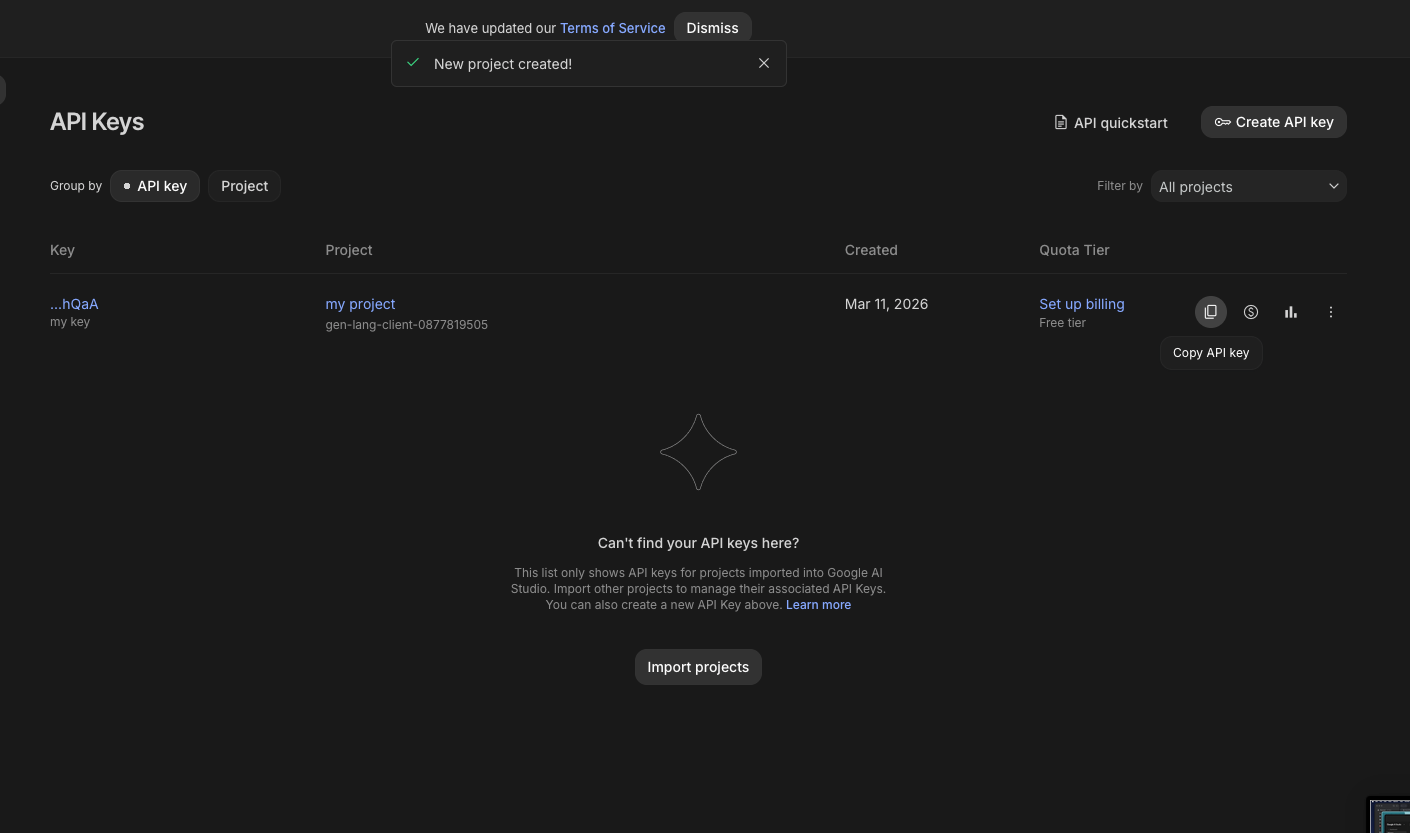
Once you have generated your API key in Google AI Studio, you will see a clipboard icon next to the key. Click on this clipboard icon to copy your newly created API key to the clipboard.
Next, open the Bina application and navigate to the Settings page. In the Gemini TTS section, you will find a field labeled "API Key." Paste your copied API key into this field.
After entering the key, be sure to save your changes. Your API key is now securely stored and ready to be used by Bina for text-to-speech features.
If you ever need to replace or update your key, simply repeat the process above with your new API key.
Summary
| Step | Action |
|---|---|
| 1 | Open Google AI Studio, sign in, and click Create Api Key |
| 2 | In the pop-up, choose to select an existing project or create a new one |
| 3 | Create or select a Google Cloud project (billing and quotas apply) |
| 4 | Name the API key (e.g. Bina TTS) and store it safely |
| 5 | (Optional) Restrict the key in Cloud Console → Credentials |
| 6 | Copy the key via the clipboard icon, then paste it in Bina Settings → Gemini TTS → API Key and save |
For text-to-speech with Gemini, ensure the Generative Language API is enabled for your project in Google Cloud Console → APIs & Services → Library.